The Problem
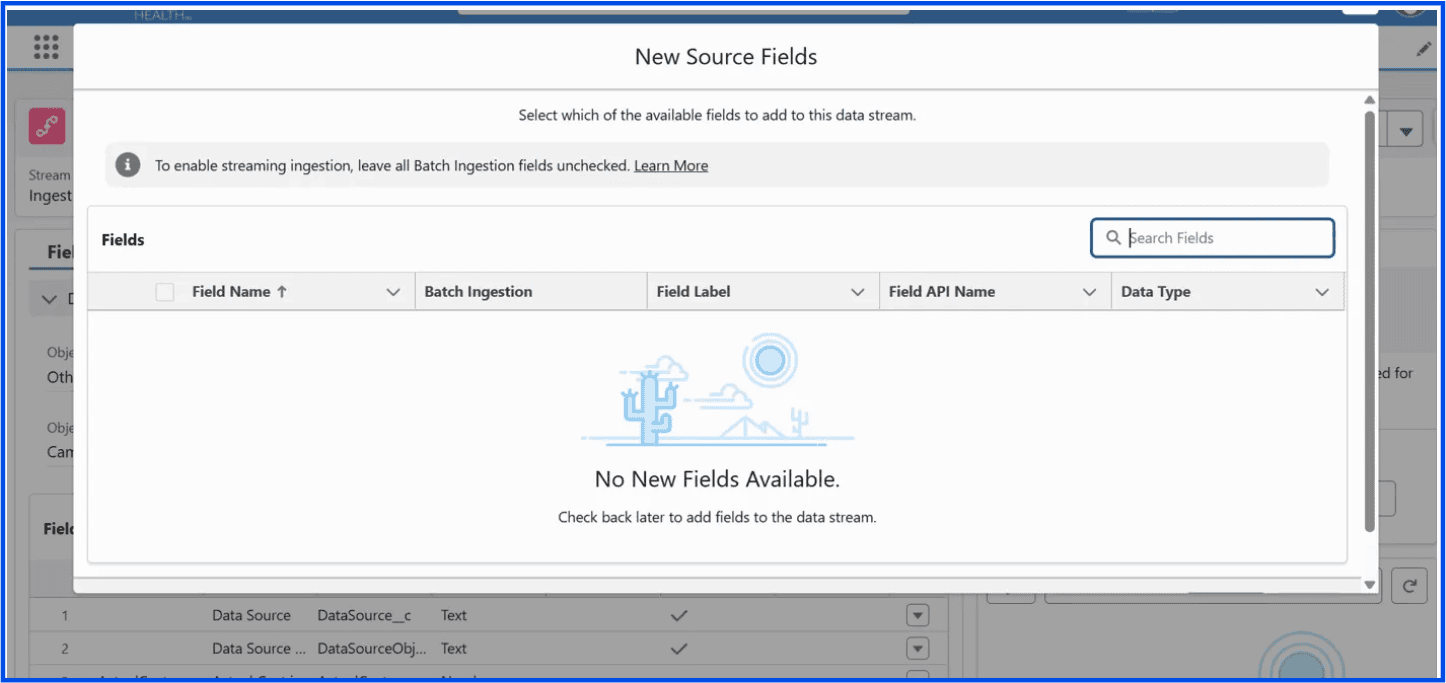
You’re in your Health Cloud org, building out Data Cloud segmentation. You navigate to Data Streams → your Campaign stream → Add Source Fields. You know the fields are there — the Data Mapping tab clearly shows 16 out of 39 fields mapped. So where are the other 23?
“No New Fields Available. Check back later to add fields to the data stream.”
You refresh the data stream. Still nothing. You double-check the stream status — Active, last run Successful. Still nothing. Forty-five minutes later you’re questioning your life choices.
Here’s the thing: this is not a data stream problem, not a connector cache problem, and not a timing problem. It is a permissions problem — and a very specific one that is easy to miss in a Health Cloud implementation.
Why This Happens
The Data Cloud Salesforce Connector uses a dedicated permission set — called “Data Cloud Salesforce Connector” — to determine which objects and fields it is allowed to read from your Salesforce org. Out of the box, this permission set does not include Health Cloud system permissions.
That means Health Cloud objects and fields — including Campaign fields tied to Health Cloud managed packages — are invisible to Data Cloud even if they are perfectly visible to you as an admin. The connector literally cannot see them. No permission, no fields, no love.
This is the root cause: the Data Cloud Salesforce Connector permission set is missing Health Cloud system permissions and object/field-level access. Refreshing the data stream will never fix this.
The Fix: Configure the Data Cloud Salesforce Connector Permission Set
This is a Salesforce-documented fix for Health Cloud orgs using Data 360 (Data Cloud). You will need the Manage Profiles and Permission Sets user permission and the Health Cloud Admin permission set to do this.
Step 1 — Add Health Cloud System Permissions
1. From Setup, enter Permission Sets in the Quick Find box and select Permission Sets.
2. Find and select Data Cloud Salesforce Connector.
3. Click System Permissions.
4. Click Edit.
5. Find and enable all four of the following permissions:
• Manage Health Cloud
• Manage Health Cloud Financial Data
• Manage Health Cloud Utilization Management
• Perform medication reconciliation with Medication Management
6. Save your changes.
Step 2 — Grant Object and Field Access
7. From the Data Cloud Salesforce Connector permission set, click Permission Set Overview.
8. Click Object Settings.
9. Find the Health Cloud object you need (e.g., Campaign or a related Health Cloud object) and select it.
10. Click Edit.
11. Under Object Permissions, select Read and View All Records.
12. Under Field Permissions, select Read Access for each field you need available in Data Cloud.
13. Save your changes.
14. Repeat steps 9–13 for every Health Cloud object you plan to use.
After saving, go back to your Data Stream, click Refresh Now, and then try Add Source Fields again. Your fields should now appear.
Why This Trips People Up
Most Data Cloud troubleshooting guides point you toward the data stream refresh button, the connector Last Updated date, or connector-level metadata cache issues. Those are all valid things to check in a standard CRM implementation — but in a Health Cloud org, the permission layer sits upstream of all of that.
It doesn’t matter how fresh the connector metadata is if the connector user doesn’t have permission to see the fields in the first place. The “No New Fields Available” message is technically accurate — from the connector’s point of view, there really are no new fields available, because it has never had access to them.
The fix is not a technical workaround. It is the documented, intended configuration step that simply gets missed during initial Health Cloud + Data Cloud setup.
If you’re on Health Cloud and your Data Cloud data stream says “No New Fields Available” despite fields clearly existing: go to Setup → Permission Sets → Data Cloud Salesforce Connector → System Permissions and enable the four Manage Health Cloud permissions. Then grant Read and View All access on each Health Cloud object and field you need. That’s it.